Quick Answer
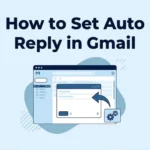
To set up an auto reply in Gmail, open Gmail, go to Settings > See all settings > General > Vacation responder, turn it on, add your dates, subject, and message, then click Save Changes.
The easiest setup is: Open Gmail, Go to Settings, Find Vacation Responder, Write Your Message, Save Changes
Ever wished Gmail could answer emails for you while you are away, busy, sleeping, traveling, or simply trying to escape the inbox for a few hours? Good news: it can. Setting up an auto reply in Gmail is surprisingly simple, and it can save you from sending the same “I’ll get back to you soon” message over and over again.
Whether you are heading on vacation, taking a day off, running a business, managing client emails, or just need some inbox breathing room, Gmail’s built-in Vacation responder can automatically send a message when someone emails you. You can choose the dates, write your own subject and message, and even limit the response to your contacts.
Here is exactly how to get it working without turning your inbox into a full-time job.
How To Set Up Auto Reply In Gmail On Computer
- Open Gmail on your computer
Use this when you want to configure your automatic response from the desktop version of Gmail.
Meaning: Start by opening your Gmail inbox in your browser. - Click the Settings gear icon
Use this when you are ready to access Gmail’s configuration options.
Meaning: The Settings menu contains the controls needed to create your automatic reply. - Select See all settings
Use this after opening the quick settings panel.
Meaning: This takes you to Gmail’s full settings page. - Open the General tab
Use this when you are inside the complete Gmail settings.
Meaning: The automatic reply option is located under Gmail’s General settings. - Scroll down to Vacation responder
Use this when you are looking for Gmail’s built-in automatic reply feature.
Meaning: Vacation responder is the Gmail feature used for automatic out-of-office replies. - Select Vacation responder on
Use this when you want Gmail to start sending automatic replies.
Meaning: Turning this option on activates your automated response. - Choose your start date
Use this when you want the auto reply to begin at a specific time.
Meaning: Gmail starts the responder at 12:00 AM on the selected start date. - Choose your end date
Use this when you know when you will return or want the automatic response to stop.
Meaning: Gmail normally stops the responder at 11:59 PM on the selected end date. - Add an email subject
Use this when you want recipients to immediately understand why they received an automatic response.
Meaning: The subject gives your automated email context. - Write your automatic message
Use this to explain when you will respond or provide useful information.
Meaning: This is the actual message Gmail sends automatically. - Choose whether to reply only to contacts
Use this when you do not want everyone who emails you to receive the automatic message.
Meaning: Gmail lets you restrict the automatic response to people in your contacts. - Review your dates and message
Use this before activating the feature.
Meaning: A quick review helps prevent incorrect dates or accidental messages. - Click Save Changes
Use this as the final setup step.
Meaning: Gmail saves your settings and activates the automatic reply. - Check the banner at the top of Gmail
Use this after saving your settings.
Meaning: Gmail shows a banner when the automatic reply is active.
How To Set Up Auto Reply In Gmail On Android
- Open the Gmail app
Use this when you want to configure the responder from your Android phone or tablet.
Meaning: Start inside the Gmail mobile app. - Tap the Menu icon
Use this to access Gmail’s account settings.
Meaning: The menu contains your Gmail configuration options. - Tap Settings
Use this after opening the Gmail menu.
Meaning: This opens the settings available for your account. - Choose your Gmail account
Use this if multiple accounts are connected to the app.
Meaning: The vacation responder applies to the account you select. - Tap Vacation responder
Use this to open the automatic reply settings.
Meaning: This is where Gmail lets you create your out-of-office message. - Turn Vacation responder on
Use this when you are ready to activate automatic replies.
Meaning: Gmail will begin responding automatically to incoming emails. - Enter the start date
Use this to decide when your automatic response begins.
Meaning: Gmail begins the response period at midnight on the selected date. - Enter the end date
Use this to schedule when the response ends.
Meaning: The automatic reply ends at the end of the selected date unless you stop it earlier. - Add your subject
Use this to give your automated email a clear title.
Meaning: The subject tells recipients what the automatic email is about. - Write your message
Use this to tell people when you will be available again.
Meaning: Your message becomes the automatic response they receive. - Choose contact-only replies if needed
Use this when you want to limit who receives your response.
Meaning: Only people in your contacts will receive the automatic reply when this option is enabled. - Tap Done
Use this after completing the settings.
Meaning: Gmail saves your automatic response configuration. - Check that the responder is switched on
Use this before leaving the settings.
Meaning: This confirms that Gmail is ready to send your automatic messages. - Turn it off when you return
Use this when you no longer need the automatic reply.
Meaning: Switching Vacation responder off stops future automatic responses.
How To Set Up Auto Reply In Gmail On iPhone
- Open the Gmail app
Use this when configuring your automatic reply from an iPhone or iPad.
Meaning: Start by opening the Gmail application. - Tap the Menu icon
Use this to access your account options.
Meaning: The menu contains Gmail’s settings. - Tap Settings
Use this after opening the side menu.
Meaning: This takes you into your Gmail configuration options. - Open Compose and Reply settings
Use this when looking for Vacation responder on iOS.
Meaning: Gmail places the automatic reply option within these settings. - Tap Vacation responder
Use this to begin configuring the automatic email.
Meaning: This opens the controls for your out-of-office response. - Turn on Vacation Responder
Use this when you want Gmail to start replying automatically.
Meaning: The feature becomes active for incoming messages. - Set your date range
Use this to determine how long the automatic response should remain active.
Meaning: Gmail uses the selected dates to control when the responder starts and ends. - Add a subject
Use this when you want your automated email to look clear and organized.
Meaning: The subject identifies the purpose of the response. - Write your message
Use this to explain your availability or response time.
Meaning: This text is sent automatically to eligible senders. - Select Send only to my Contacts if needed
Use this when you want to restrict the response.
Meaning: Only contacts receive the automatic message when the option is enabled. - Tap Save
Use this to finish the setup.
Meaning: Gmail saves and activates your automatic response. - Check the settings before leaving
Use this if the reply is important for work or clients.
Meaning: Reviewing everything helps avoid incorrect dates or wording. - Turn Vacation Responder off later
Use this when you are back and ready to answer emails normally.
Meaning: Turning it off ends future automatic replies. - Test your message with a second email account
Use this when your auto reply is important for customers or professional contacts.
Meaning: A test can help confirm that the message and dates are configured correctly.
Best Auto Reply Examples For Gmail
- I’m currently away from my email and will respond when I return. Thank you for your patience.
Use this for a straightforward professional absence message.
Meaning: You are letting senders know that your response will be delayed. - Thanks for your email! I’m currently out of the office and will get back to you as soon as possible.
Use this for general workplace communication.
Meaning: You are acknowledging the email while explaining your temporary unavailability. - Thank you for reaching out. I’m currently away and will respond after I return.
Use this when responding to clients or business contacts.
Meaning: You are keeping the message professional and courteous. - I’m taking some time away from my inbox. I’ll get back to you soon!
Use this for a friendly workplace environment.
Meaning: You are communicating your absence in a relaxed way. - Thanks for your message! I’m currently unavailable but will respond as soon as I can.
Use this when you do not want to provide too many details.
Meaning: You are setting expectations about a delayed response. - I’m currently out of the office. For urgent matters, please contact the appropriate member of our team.
Use this when someone else can handle urgent requests.
Meaning: You are directing important issues toward an alternative contact. - Thank you for your email. I’m away from my desk and will reply when I’m available.
Use this for a simple professional response.
Meaning: You are explaining that you cannot respond immediately. - Thanks for reaching out! I’m enjoying some time away and will catch up on emails when I return.
Use this for a warmer vacation message.
Meaning: You are letting people know you are intentionally taking time away. - Your email has arrived safely. I’m currently away and will respond shortly after I return.
Use this for a slightly polished automatic response.
Meaning: You are reassuring the sender that their message was received. - I’m currently offline and enjoying a little break from the inbox. I’ll be back soon.
Use this for a casual personal or creative-business account.
Meaning: You are giving the automatic reply a friendly personality. - Thank you for your message. I’m unavailable until [date] and will respond after I return.
Use this when you know your exact return date.
Meaning: You are clearly setting expectations about your availability. - I’m currently away from email. Thank you for your understanding, and I’ll respond as soon as possible.
Use this for clients and professional contacts.
Meaning: You are politely explaining the delay. - Thanks for your email! I’m out for a short break and will be back in touch soon.
Use this when you want a friendly tone.
Meaning: You are making the automatic response feel less robotic. - I’m away from my inbox right now, but your message is on my radar. I’ll respond when I’m back.
Use this for a modern business or creator account.
Meaning: You are reassuring the sender that their email has not been ignored. - Thank you for contacting me. I’ll review your message and respond once I’m available.
Use this when you want a polished, neutral response.
Meaning: You are setting a clear expectation without unnecessary details.
Funny Auto Reply Ideas
- I’m currently away from my inbox, because even emails deserve a little vacation.
Use this for a relaxed workplace or personal account.
Meaning: You are announcing your absence with light humor. - My inbox and I are taking some much-needed space. I’ll be back soon.
Use this when your audience appreciates playful wording.
Meaning: You are joking about needing a break from email. - Currently unavailable. My coffee and I are handling important matters elsewhere.
Use this for a casual creative environment.
Meaning: You are humorously explaining that you are taking time away. - I’m out of office and temporarily pretending emails do not exist.
Use this with colleagues who appreciate sarcasm.
Meaning: You are joking about disconnecting from work. - Inbox status: ignored for now. Human status: enjoying a break.
Use this for a fun personal account.
Meaning: You are playfully explaining why you are not responding. - I’m away right now. Future me will deal with this email.
Use this for a humorous casual auto reply.
Meaning: You are jokingly passing the responsibility to your future self. - Currently offline. Please leave your email after the beep. Just kidding, I’ll be back soon.
Use this when you want a playful voicemail-style message.
Meaning: You are making a standard absence message entertaining. - I’ve temporarily escaped the inbox. Wish me luck.
Use this during a vacation or short break.
Meaning: You are turning your absence into a lighthearted joke. - Emails are welcome. Replies are currently on vacation.
Use this for a short funny message.
Meaning: You are humorously explaining the delayed response. - I’m away, but my inbox is apparently still working overtime.
Use this when you expect plenty of incoming messages.
Meaning: You are joking about the difference between your break and your inbox. - Currently out of office and professionally unavailable for nonsense.
Use this with a close team that understands your humor.
Meaning: You are jokingly setting a boundary around your time away. - I’ll reply when I return, assuming my inbox has not staged a rebellion.
Use this when you expect many emails.
Meaning: You are making light of returning to a busy inbox. - BRB, pretending I have never heard of email.
Use this for a casual creative account.
Meaning: You are humorously announcing a temporary digital escape. - I’m taking a break. Your email is safe and patiently waiting for me.
Use this when you want humor without sounding unprofessional.
Meaning: You are reassuring the sender while keeping the tone playful. - Out of office. Back soon. Hopefully with fewer unread emails.
Use this when your inbox tends to get crowded.
Meaning: You are joking about the challenge of returning to email.
How Gmail Auto Replies Work
- Automatic replies do not necessarily go out every time someone emails you.
Use this when you are planning your expectations around the feature.
Meaning: Gmail normally sends the vacation response only the first time someone messages you during the active period. - A sender may receive the reply again after four days.
Use this when someone continues emailing while your responder remains active.
Meaning: Gmail can send another automatic response if the same person contacts you again after four days. - Editing the automatic reply can trigger another response.
Use this when changing your message during an active responder period.
Meaning: Someone who already received the original reply may receive the updated version after contacting you again. - Your automatic response follows the date range you select.
Use this when scheduling a future absence.
Meaning: Gmail starts and ends the responder according to the configured dates and times. - Spam messages do not receive the automatic reply.
Use this when wondering whether every incoming message gets a response.
Meaning: Gmail excludes messages that go to spam from the vacation response. - Mailing-list messages do not receive the automatic reply.
Use this when you receive emails from mailing lists.
Meaning: Gmail does not send the vacation response to mailing lists you subscribe to. - A subject can help separate the automatic response from a conversation thread.
Use this when you want the automatic email to appear separately.
Meaning: Gmail says adding a subject causes the recipient to receive the response as a separate email. - Your Gmail signature may appear below the automatic response.
Use this when your account already has a signature configured.
Meaning: Your existing signature can be displayed beneath the vacation message. - You can stop the responder before the scheduled end date.
Use this when you return earlier than expected.
Meaning: You can manually end the automatic reply instead of waiting for the scheduled date. - Gmail displays a banner while the responder is active.
Use this when checking whether the feature is still turned on.
Meaning: The banner provides a visible reminder that automatic replies are active. - Contact-only replies are optional.
Use this when deciding who should receive your message.
Meaning: Gmail allows you to restrict automatic responses to your contacts. - The feature is designed mainly for temporary unavailability.
Use this when deciding whether Vacation responder fits your needs.
Meaning: Gmail presents it primarily as an out-of-office or vacation response feature. - You can use a custom message.
Use this when the default wording does not fit your situation.
Meaning: Gmail lets you write the subject and message yourself. - You can use different wording for different situations.
Use this when creating vacation, business, personal, or holiday responses.
Meaning: Custom text lets the automatic reply match your audience. - You should check the responder before an important absence.
Use this when clients or coworkers depend on timely communication.
Meaning: Reviewing your dates and message helps make sure people receive accurate information.
How To Turn Off Gmail Auto Reply
- Open Gmail Settings
Use this when you are ready to stop the automatic response.
Meaning: The responder controls are located inside Gmail settings. - Go to See all settings
Use this when accessing the complete settings page on desktop.
Meaning: This gives you access to the Vacation responder section. - Return to Vacation responder
Use this after opening the General settings.
Meaning: This is where the active automatic response can be disabled. - Select Vacation responder off
Use this when you have returned or no longer need automatic replies.
Meaning: Gmail stops sending future automatic responses. - Click Save Changes
Use this when disabling the responder from desktop settings.
Meaning: Gmail saves the new off status. - Use End now from the Gmail banner
Use this when the responder is currently active and you want to stop it immediately.
Meaning: Gmail provides an End now option in the active responder banner. - Turn off Vacation responder on Android
Use this when managing the feature from an Android device.
Meaning: Switching the option off stops your automatic reply. - Turn off Vacation Responder on iPhone
Use this when managing your account through the iOS Gmail app.
Meaning: Disabling the switch ends the automatic response. - Check your inbox after disabling it
Use this when you want to make sure the responder is no longer active.
Meaning: Your inbox should no longer show the active responder notification. - Remove outdated information from the message
Use this before setting up the responder again later.
Meaning: Fresh wording prevents recipients from receiving old dates or instructions. - Update your return date when needed
Use this if your plans change before the responder ends.
Meaning: Keeping the schedule accurate prevents confusing automatic replies. - Review your signature
Use this if your automatic response contains unexpected text.
Meaning: Gmail can display your existing signature beneath the vacation response. - Check contact-only settings
Use this before reactivating the feature.
Meaning: It confirms whether your response will go to everyone eligible or only your contacts. - Save your changes
Use this whenever you modify the responder settings.
Meaning: Saving ensures Gmail applies your updated configuration. - Return to normal email replies
Use this once you are available again.
Meaning: After disabling the responder, you can handle incoming messages normally.
Common Gmail Auto Reply Mistakes
- Forgetting to set an end date
Use this warning when creating a long-term absence message.
Meaning: An incorrectly configured responder can remain active longer than intended. - Writing too much information
Use this when drafting your automatic message.
Meaning: A short, useful response is easier for senders to understand. - Not mentioning when you will respond
Use this for professional accounts.
Meaning: A return timeframe helps manage expectations. - Using an overly casual joke for clients
Use this when deciding whether humor fits your audience.
Meaning: A playful message may not be appropriate for every professional relationship. - Using an overly formal message with friends
Use this for personal Gmail accounts.
Meaning: Matching the tone to the audience makes the automatic reply feel more natural. - Forgetting to restrict the response when necessary
Use this when you do not want everyone receiving the message.
Meaning: Gmail provides a contacts-only option that can limit recipients. - Leaving an old return date in your message
Use this when plans change.
Meaning: Outdated information can confuse people contacting you. - Forgetting that signatures may appear
Use this when your automatic message contains unexpected information.
Meaning: Gmail may include your existing signature below the response. - Not checking the message before saving
Use this before activating an important business auto reply.
Meaning: A quick proofread can catch embarrassing mistakes. - Using unclear subject lines
Use this when you want recipients to understand the message immediately.
Meaning: A clear subject makes the automated email easier to recognize. - Including unnecessary personal details
Use this when writing an out-of-office message.
Meaning: You usually only need to share your availability and useful contact information. - Forgetting to turn it off after returning
Use this after your vacation or break.
Meaning: Leaving the responder active can cause unnecessary automated replies. - Assuming every email receives an automatic response
Use this when planning around Gmail’s responder behavior.
Meaning: Gmail generally does not send the response every single time someone emails you. - Ignoring spam and mailing-list behavior
Use this when testing the feature.
Meaning: These messages generally do not receive the vacation response. - Not testing an important business message
Use this before relying on the responder for customers.
Meaning: A test can help confirm that your setup works as intended.
FAQs
Can Gmail automatically reply to emails?
Yes. Gmail includes a built-in Vacation responder that can automatically respond to incoming messages during a selected period.
Where is the auto reply setting in Gmail?
On a computer, go to Settings > See all settings > General > Vacation responder.
Can I set up an automatic reply from my phone?
Yes. Gmail supports Vacation responder through both Android and iPhone/iPad apps.
Does Gmail send the auto reply every time someone emails me?
Usually not. Gmail generally sends it the first time someone contacts you, although the same person can receive another response after four days if the responder remains active.
Can I choose who receives my Gmail auto reply?
Yes. You can choose an option that limits the response to people in your contacts.
Conclusion
Setting up an automatic reply in Gmail is one of those tiny productivity tricks that can make your inbox feel much easier to manage. Whether you are heading on vacation, taking a personal day, attending an event, or simply stepping away from work, Gmail can let people know what to expect without requiring you to answer every message manually.
The key is keeping your message clear, friendly, and appropriate for your audience. Choose your dates carefully, add a useful message, check your settings, and remember to turn the responder off when you return. Once you have it set up, your inbox can handle the first response while you focus on what actually matters. Save this guide for your next break and share it with anyone who is constantly drowning in emails!
Discover More Related Articles:
- How to Respond to a Narcissist Text | Smart Replies for Every Situation In 2026
- How to Reply With a Video on TikTok | Easy Guide In 2026

Laura Adams is a dedicated content writer and blogger known for crafting clear, informative, and engaging articles. As a contributor to Responary.com, she specializes in creating reader-friendly content that educates, inspires, and keeps audiences informed on a wide range of subjects.